Step 11 - Deploy a new version of the NGINX Plus Ingress Controller
As a reminder, in Class 1 - Step 2 - Publish Arcadia App with a NGINX Plus Ingress Controller we deployed a NGINX Plus instance as an Ingress Controller in our Kubernetes cluster.
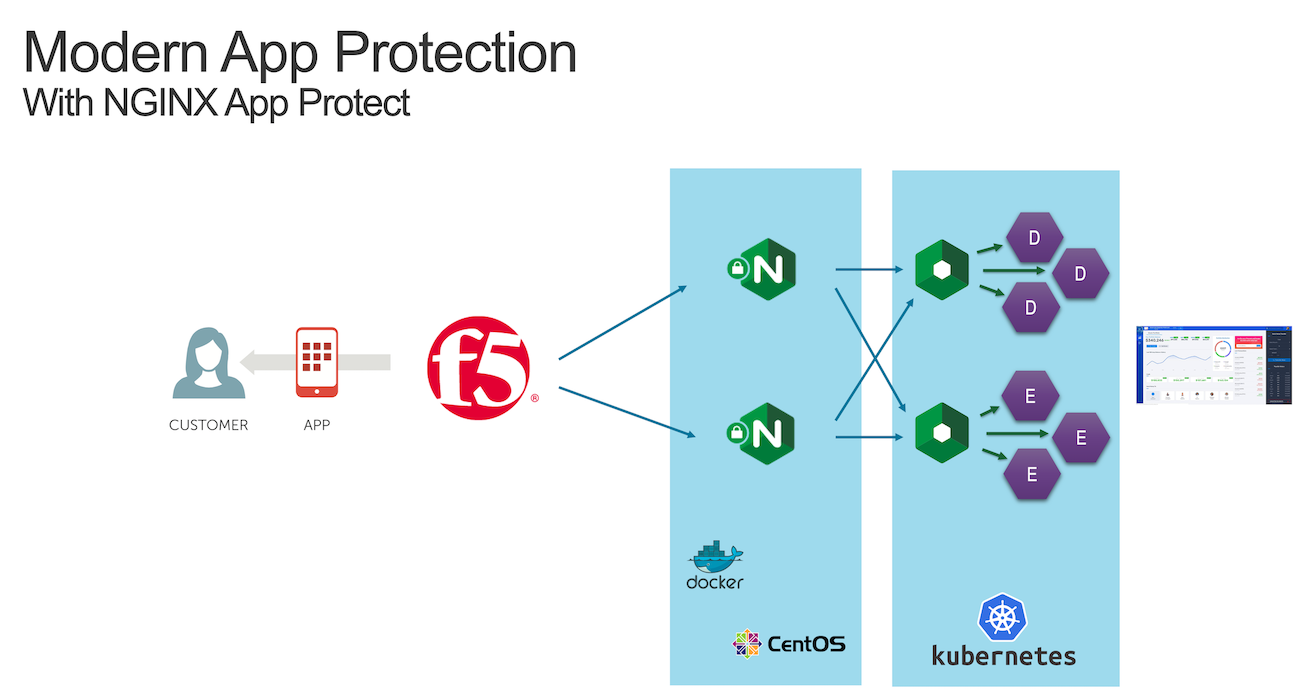
Now, with NAP v1.3, we can deploy this NGINX Plus instance with the NAP module enabled.
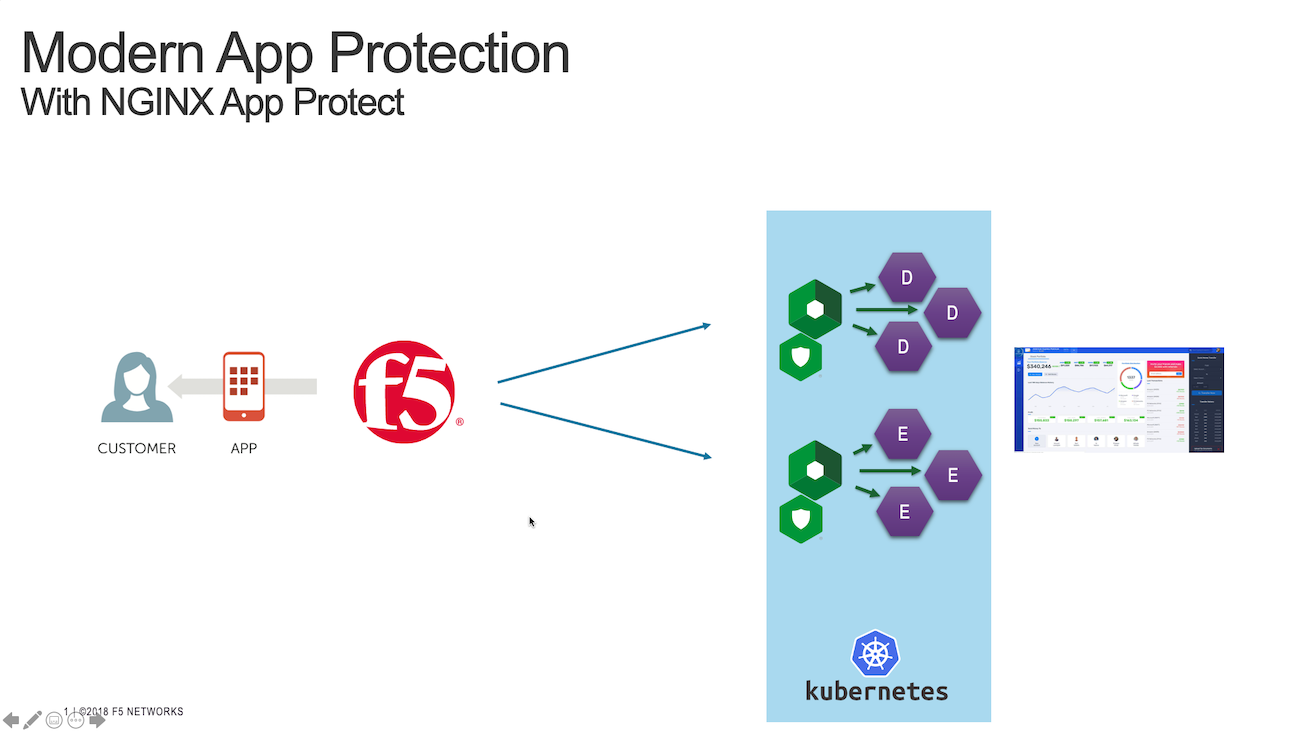
To do so, we will:
Deploy a new version of the Pod (NGINX r23 + NAP v1.10)
Deploy a new Ingress configuration template (with NAP configuration files)
Note
In this lab, we will not learn how to build the Nginx Ingress image. Follow the doc from docs.nginx.com to learn how to built the docker image. Straight forward, copy-paste the dockerfile and built it.
Warning
The NGINX Plus Ingress Controller image is available on my private Gitlab repo. Don’t share the key.
Test Attack before NAP on ingress added
Open
Edge BrowserClick on
Arcadia k8sbookmarkNow, you are connecting to Arcadia App from a new KIC with NAP enabled
Send an attack (like a XSS in the address bar) by appending
?a=<script>
Steps
SSH from Jumpbox commandline
ssh ubuntu@10.1.1.8(or WebSSH andcd /home/ubuntu/) to CICD ServerRun this command in order to delete the previous KIC
kubectl delete -f /home/ubuntu/k8s_ingress/full_ingress_arcadia.yamlRun this command in order to pull and install NGINX KIC from NGINX Repo
helm install nginx-ingress nginx-stable/nginx-ingress  \
--namespace nginx-ingress  \
--set controller.kind=deployment \
--set controller.replicaCount=2 \
--set controller.nginxplus=true \
--set controller.appprotect.enable=true \
--set controller.image.repository=registry.gitlab.com/mattdierick/nginxpluskic-nap \
--set controller.image.tag=1.10.0 \
--set controller.service.type=NodePort \
--set controller.service.httpPort.nodePort=30274 \
--set controller.service.httpsPort.nodePort=30275 \
--set controller.serviceAccount.imagePullSecretName=gitlab-token-auth \
--set controller.ingressClass=ingressclass1
Note
This command uses HELM in order to download all the required config files from Nginx repo (CRD …). What’s more, you can notice, it downloads the Ingress image (the NGINX Plus image with NAP) from a private repo in Gitlab.com
At this moment, the Ingress pod is up and running. But it is empty, there is no configuration (ingress, nap policy, logs).
Rune this commands in order to create the NAP policy, the log profile and the ingress object (the object routing the traffic to the right service)
kubectl apply -f /home/ubuntu/k8s_ingress/deploy_policy_and_logs.yaml
kubectl apply -f /home/ubuntu/k8s_ingress/ingress_arcadia_nap.yaml
Note
This 2 commands will create the WAF policy and the log profile for Arcadia App, and will create the Ingress resource (the config to route the traffic to the right services/pods)
Open
Kubernetes Dashboardbookmark in Edge BrowserScroll down on the left to
Discovery and Load Balancingand click onIngressesCheck the Ingress
arcadia-ingress(in thedefaultnamespace) by clicking on the 3 dots on the right andeditScroll down and check the specs

As you can notice, we added few lines in our Ingress declaration. To do so, I followed the guide (https://docs.nginx.com/nginx-ingress-controller/app-protect/installation/)
I added NAP specifications (from the guide)
I added NAP annotations for Arcadia app (see below)
---
apiVersion: extensions/v1beta1
kind: Ingress
metadata:
name: arcadia-ingress
annotations:
    appprotect.f5.com/app-protect-policy: "default/dataguard-blocking"
    appprotect.f5.com/app-protect-enable: "True"
    appprotect.f5.com/app-protect-security-log-enable: "True"
    appprotect.f5.com/app-protect-security-log: "default/logconf"
    appprotect.f5.com/app-protect-security-log-destination: "syslog:server=10.1.20.11:5144"

spec:
rules:
- host: k8s.arcadia-finance.io
    http:
    paths:
    - path: /
        backend:
        serviceName: main
        servicePort: 80
    - path: /files
        backend:
        serviceName: backend
        servicePort: 80
    - path: /api
        backend:
        serviceName: app2
        servicePort: 80
    - path: /app3
        backend:
        serviceName: app3
        servicePort: 80
Please a make a new test by clicking on Arcadia k8s Edge Browser bookmark.
Open
Edge BrowserClick on
Arcadia k8sbookmarkNow, you are connecting to Arcadia App from a new KIC with NAP enabled
Send an attack (like a XSS in the address bar) by appending
?a=<script>Attack is blocked
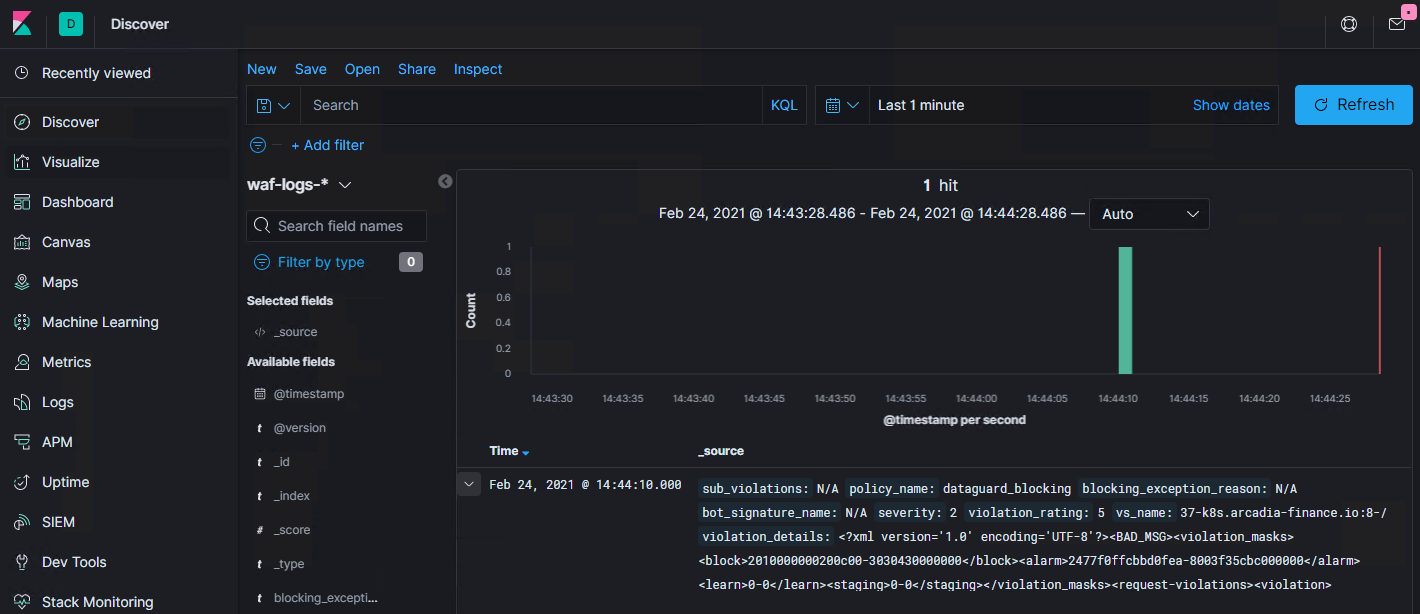
Open
Kibanabookmark and click onDiscoverto find the log
Note
if you want to delete/uninstall this Ingress Controller, you have to run this command helm uninstall nginx-ingress -n nginx-ingress This command will delete the Ingress Controller only. You have to delete the YAML deployments as well
helm uninstall nginx-ingress -n nginx-ingress
kubectl apply -f /home/ubuntu/k8s_ingress/deploy_policy_and_logs.yaml
kubectl apply -f /home/ubuntu/k8s_ingress/ingress_arcadia_nap.yaml