Step 13 - Bot Protection
Bot signatures provide basic bot protection by detecting bot signatures in the User-Agent header and URI. The bot-defense section in the policy is enabled by default.
Each bot signature belongs to a bot class. Search engine signatures such as googlebot are under the trusted_bots class, but App-Protect performs additional checks of the trusted bot’s authenticity.
If these checks fail, it means that the respective client impersonated the search engine in the signature and it will be classified as class - malicous_bot, anomaly - Search engine verification failed, and the request will be blocked, irrespective of the class’s mitigation actions configuration.
An action can be configured for each bot class, or may also be configured per each bot signature individually:
ignore- bot signature is ignored (disabled)detected- only report without raising the violation - VIOL_BOT_CLIENT. The request is considered legal unless another violation is triggered.alarm- report, raise the violation, but pass the request. The request is marked as illegal.block- report, raise the violation, and block the request
Note
We could stop the lab here, and run Bot requests. As Bot protection is enabled by default, the default protection will apply. But in order to understand to customise the config, let’s create a new Policy JSON file.
Warning
Don’t forget to follow the steps to uninstall the NAP Ingress and re-deploy the NginxPlus Ingress. Steps are in Class6 home page https://rtd-nginx-app-protect-udf.readthedocs.io/en/dev/class6/class6.html
Steps for the lab
SSH from Jumpbox commandline
ssh centos@10.1.1.10(or WebSSH) toApp Protect in CentOSGo to
cd /etc/nginxlsand check the files created during the previous CI/CD pipeline job (steps 10)[centos@ip-10-1-1-7 nginx]$ ls app-protect-log-policy.json conf.d koi-utf mime.types NginxApiSecurityPolicy.json nginx.conf.orig NginxStrictPolicy.json uwsgi_params app-protect-security-policy.json fastcgi_params koi-win modules nginx.conf NginxDefaultPolicy.json scgi_params win-utf
Create a new NAP policy JSON file with Bot
Note
The default actions for classes are:
detect for trusted-bot,alarm for untrusted-bot, andblock for malicious-bot. In this example, we enabled bot defense and specified that we want to raise a violation for trusted-bot, and block for untrusted-bot.sudo vi /etc/nginx/policy_bots.json
{
    "policy": {
        "name": "bot_defense_policy",
        "template": {
            "name": "POLICY_TEMPLATE_NGINX_BASE"
        },
        "applicationLanguage": "utf-8",
        "enforcementMode": "blocking",
        "bot-defense": {
            "settings": {
                "isEnabled": true
            },
            "mitigations": {
                "classes": [
                    {
                        "name": "trusted-bot",
                        "action": "alarm"
                    },
                    {
                        "name": "untrusted-bot",
                        "action": "block"
                    },
                    {
                        "name": "malicious-bot",
                        "action": "block"
                    }
                ]
            }
        }
    }
}
Modify the
nginx.conffile is order to reference to this new policy json file. Just a new line to add.sudo vi /etc/nginx/nginx.conf
user nginx;

worker_processes 1;
load_module modules/ngx_http_app_protect_module.so;

error_log /var/log/nginx/error.log debug;

events {
    worker_connections  1024;
}

http {
    include       /etc/nginx/mime.types;
    default_type  application/octet-stream;
    sendfile        on;
    keepalive_timeout  65;

    server {
        listen       80;
        server_name  localhost;
        proxy_http_version 1.1;

        app_protect_enable on;
        app_protect_policy_file "/etc/nginx/policy_bots.json";
        app_protect_security_log_enable on;
        app_protect_security_log "/etc/nginx/app-protect-log-policy.json" syslog:server=10.1.20.6:5144;

        location / {
            resolver 10.1.1.9;
            resolver_timeout 5s;
            client_max_body_size 0;
            default_type text/html;
            proxy_pass http://k8s.arcadia-finance.io:30274$request_uri;
        }
    }
}
Reload Nginx
sudo nginx -s reload
Generate simulated Bot traffic
RDP to Windows
Jumphostasuser:userOpen
Edge Browserand check your can acces Arcadia Web Application via the BookmarkArcadia NAP CentOSNow, on the
Desktop, launchJmeterIn Jmeter, open the project in
File>>Open Recent>>HTTP Request Bots.jmx. This file is located in folder Desktop > lab-links > jmeter_files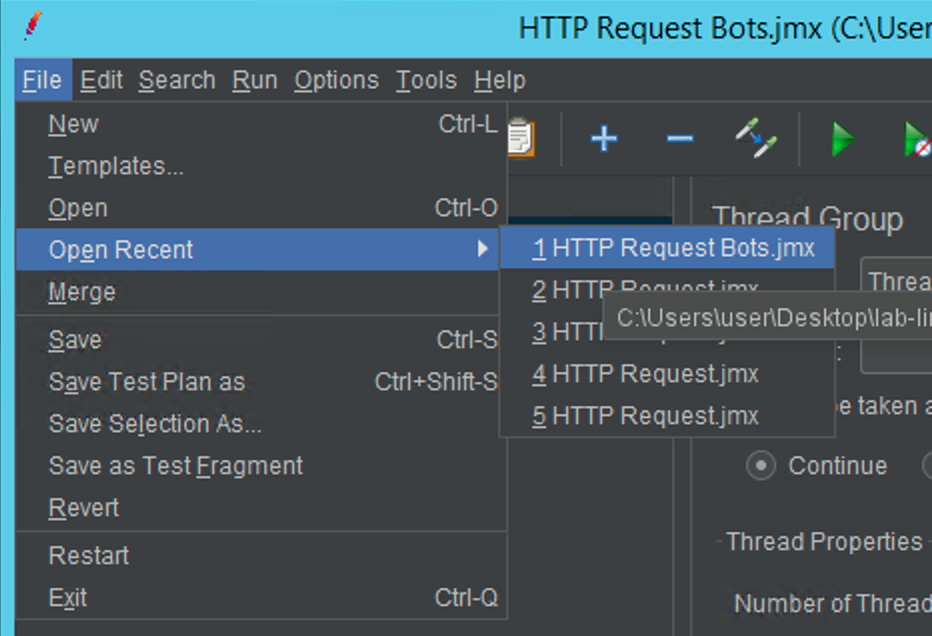
Now, run the project by click on the
GREEN PLAY BUTTON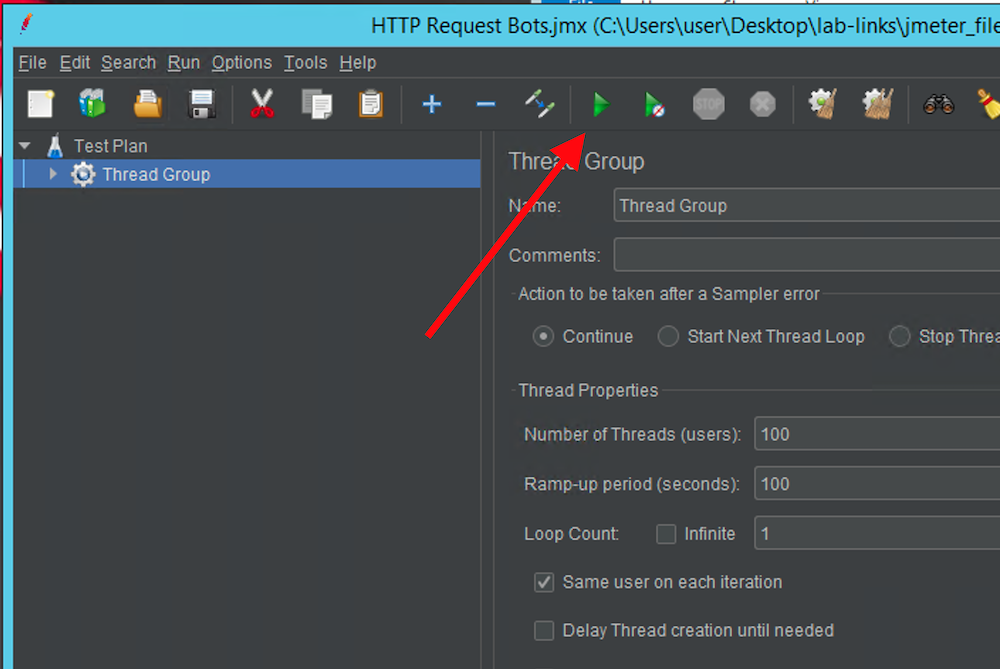
THe project is sending HTTP requests to the NAP with a public IP address (known as
bad reputation) and with a BotUser-Agent. We will simulate bots by changing the user agent.You can expand
Thread Groupand click onView Results Treeto see each request sent.Now, go to
ELK - KibanafromEdge Browser, Click on Dashboards thenOverviewdashboard.You can notice Good and Bad request in the widgets, but let’s focus on the logs at the bottom of the dashboard

Note
You can notice we were able to
locatethe source of the request because jmeter inject an XFF header.Open the logs in full screen
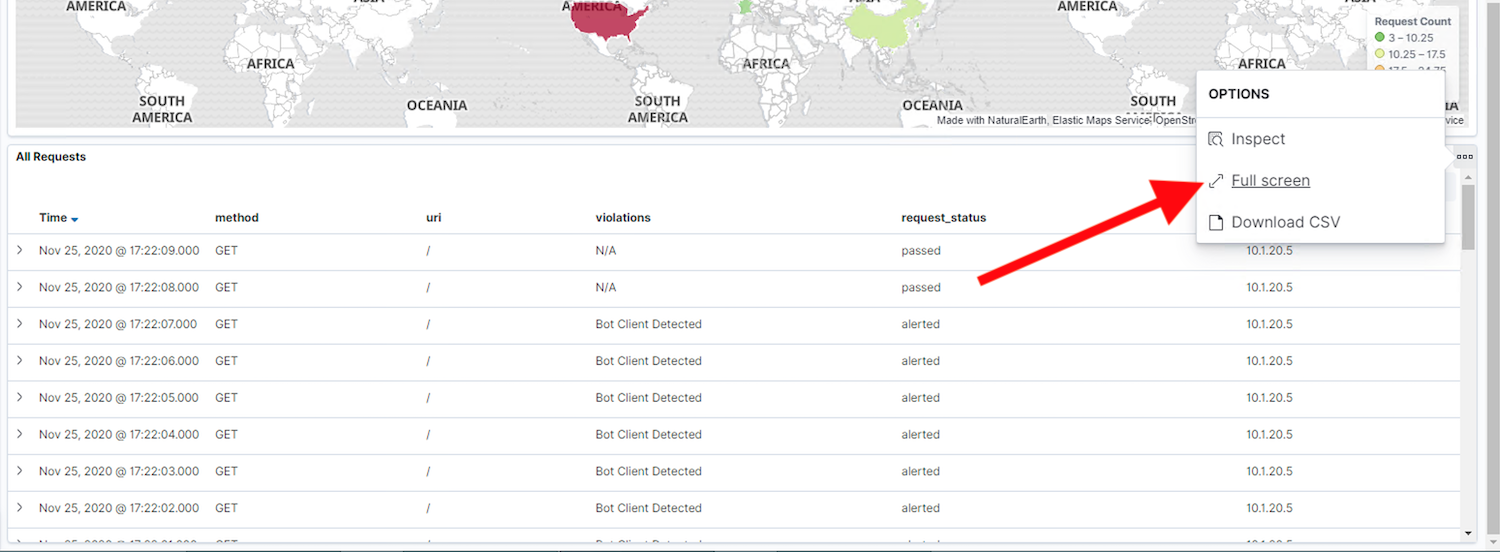
Look at the logs, and open up one or two logs
alertedorblocked. You can notice theBot Category, theviolation…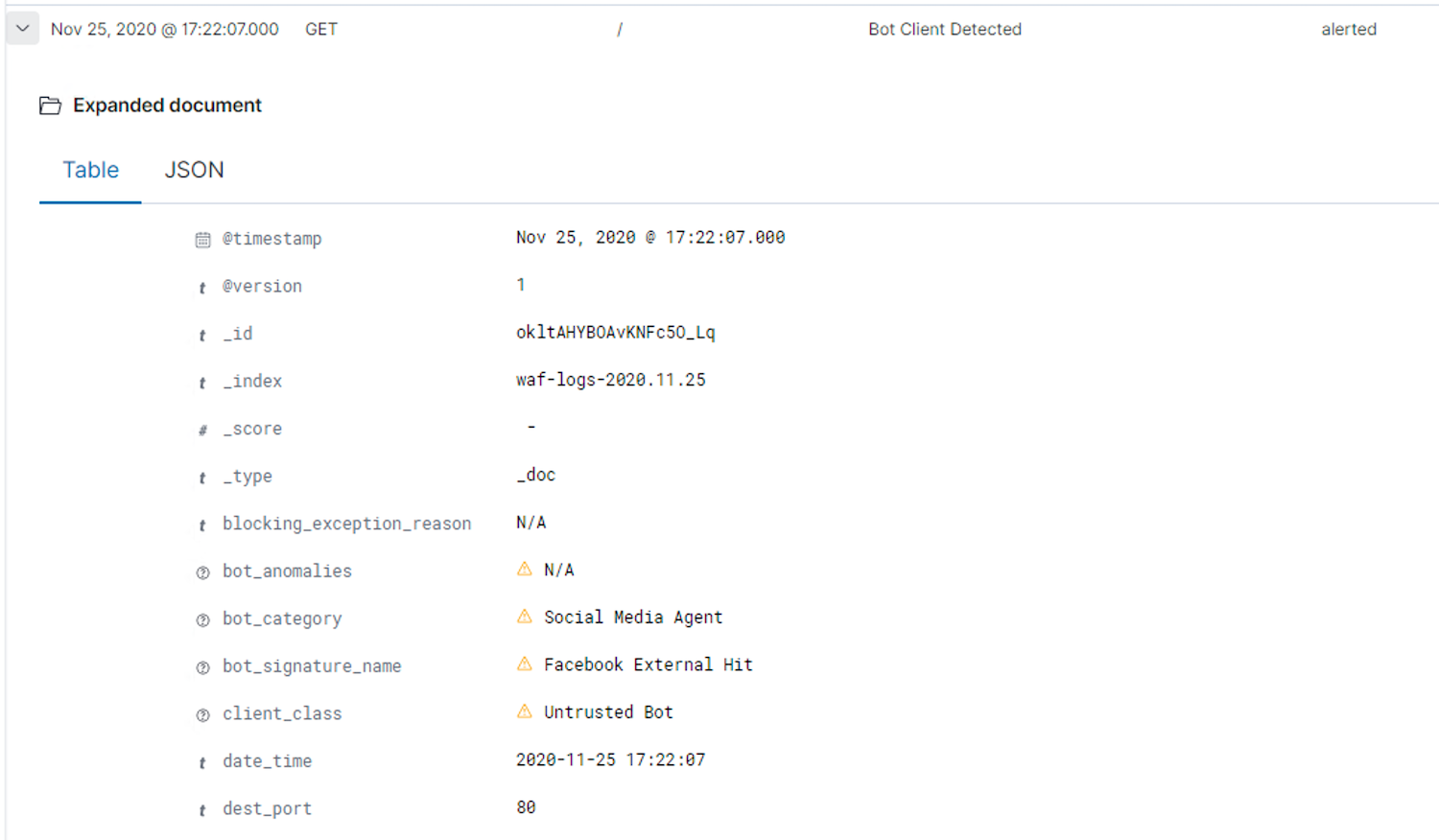
Note
Now, your NAP is protecting against known bots and you can customize your policy in order to make it more strick or not.