Step 1 - Deploy and publish Arcadia Finance application in Kubernetes
It’s time to deploy Arcadia Finance application :)
Deploy Arcadia Application with kubectl command
With Kubernetes, there are several ways to deploy containers (pods). One way is to use kubectl command with a YAML deployment file.
I prepared this YAML file below (this is only for the main app container). You can have a look, and see it will deploy containers from my Gitlab.com repo.
apiVersion: v1
kind: Service
metadata:
name: main
namespace: default
labels:
    app: main
spec:
type: NodePort
ports:
- name: main-80
    nodePort: 30511
    port: 80
    protocol: TCP
    targetPort: 80
selector:
    app: main
---
apiVersion: apps/v1
kind: Deployment
metadata:
name: main
namespace: default
labels:
    app: main
    version: v1
spec:
replicas: 1
selector:
    matchLabels:
    app: main
    version: v1
template:
    metadata:
    labels:
        app: main
        version: v1
    spec:
    containers:
    - env:
        - name: service_name
        value: main
        image: registry.gitlab.com/arcadia-application/main-app/mainapp:latest
        imagePullPolicy: IfNotPresent
        name: main
        ports:
        - containerPort: 80
        protocol: TCP
---
Note
To make it simple, it deploys the container from gitlab.com repo, and a service. The service is used later on by the NGINX Plus Ingress Controller.
Steps :
RDP to the jumphost with
user:useras credentialsSSH from jumphost commandline
ssh ubuntu@10.1.1.8(or WebSSH andcd /home/ubuntu/) to CICD ServerRun this command
kubectl apply -f /home/ubuntu/Arcadia_k8S/all_apps.yamlOpen Edge Browser
Open Kubernetes Dashboard bookmark (if not already opened)
Click
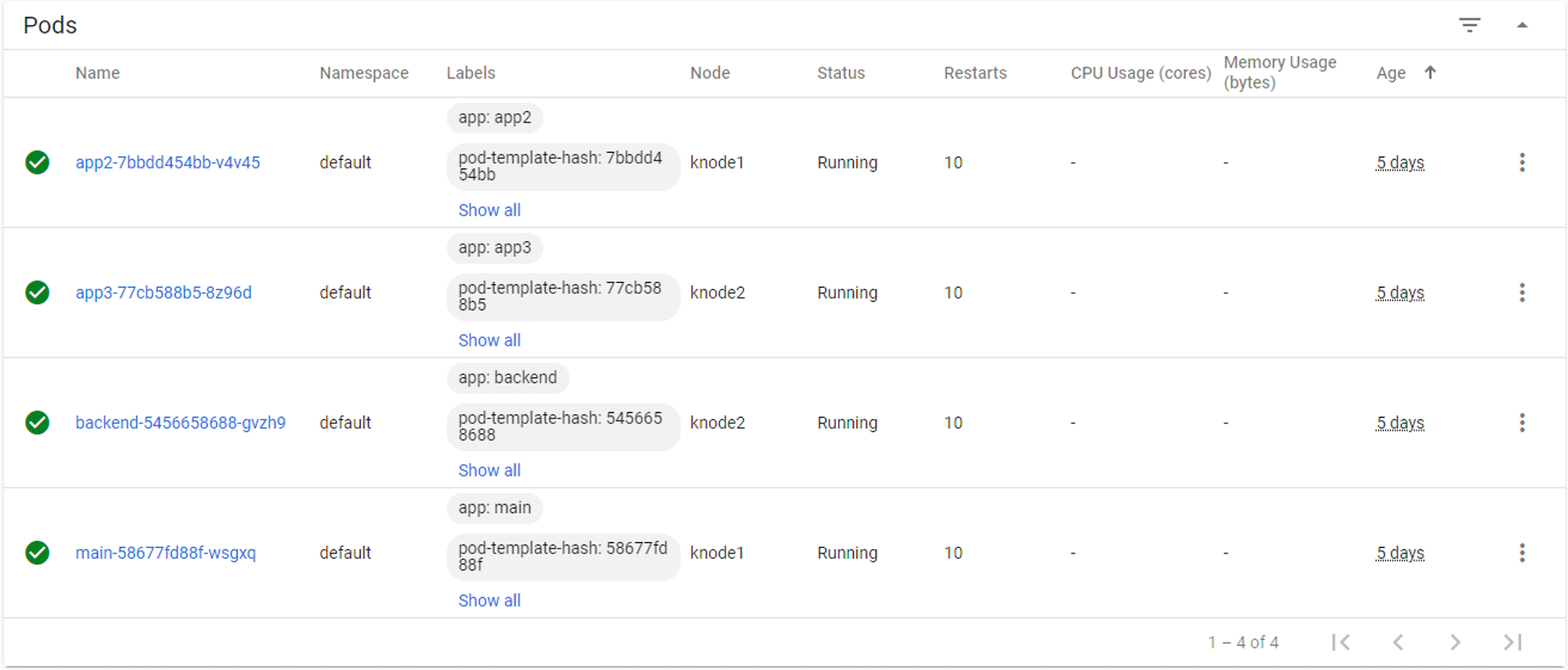
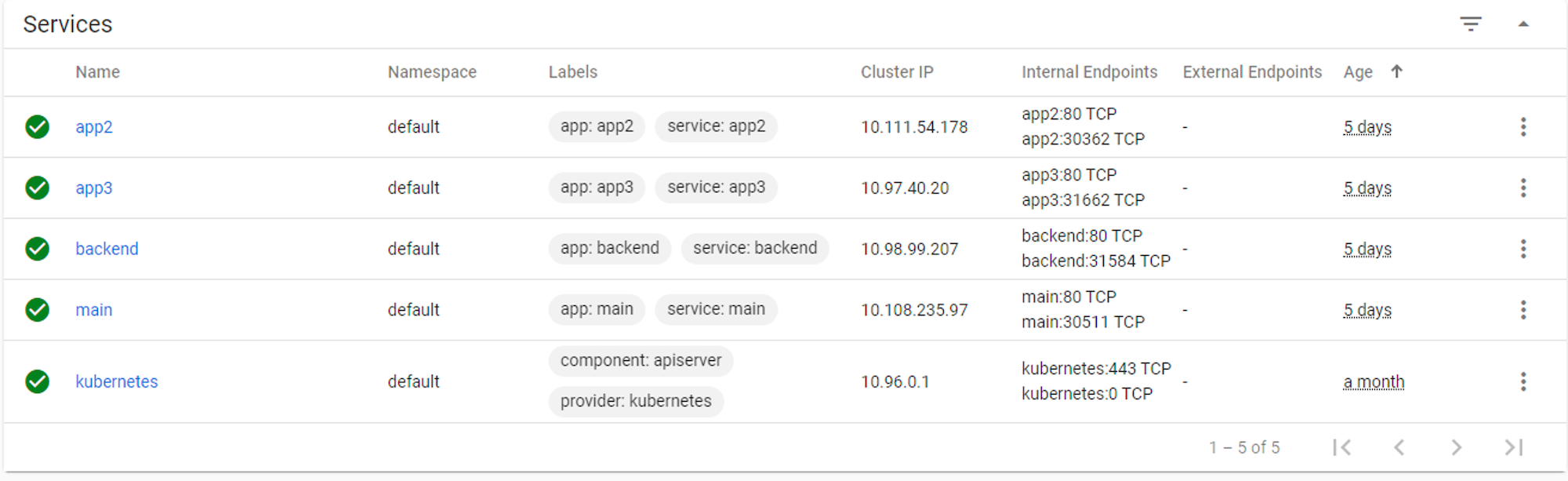
skipon the logon pageYou should see the services and the pods
Warning
Arcadia Application is running but not yet available for the customers. We need to publish it.
Video of this module (force HD 1080p in the video settings)