
Step 11 - Deploy a new version of the NGINX Plus Ingress Controller
Step 11 - Deploy a new version of the NGINX Plus Ingress Controller
As a reminder, in Class 1 - Step 2 - Publish Arcadia App with a NGINX Plus Ingress Controller we deployed a NGINX Plus instance as an Ingress Controller in our Kubernetes cluster.
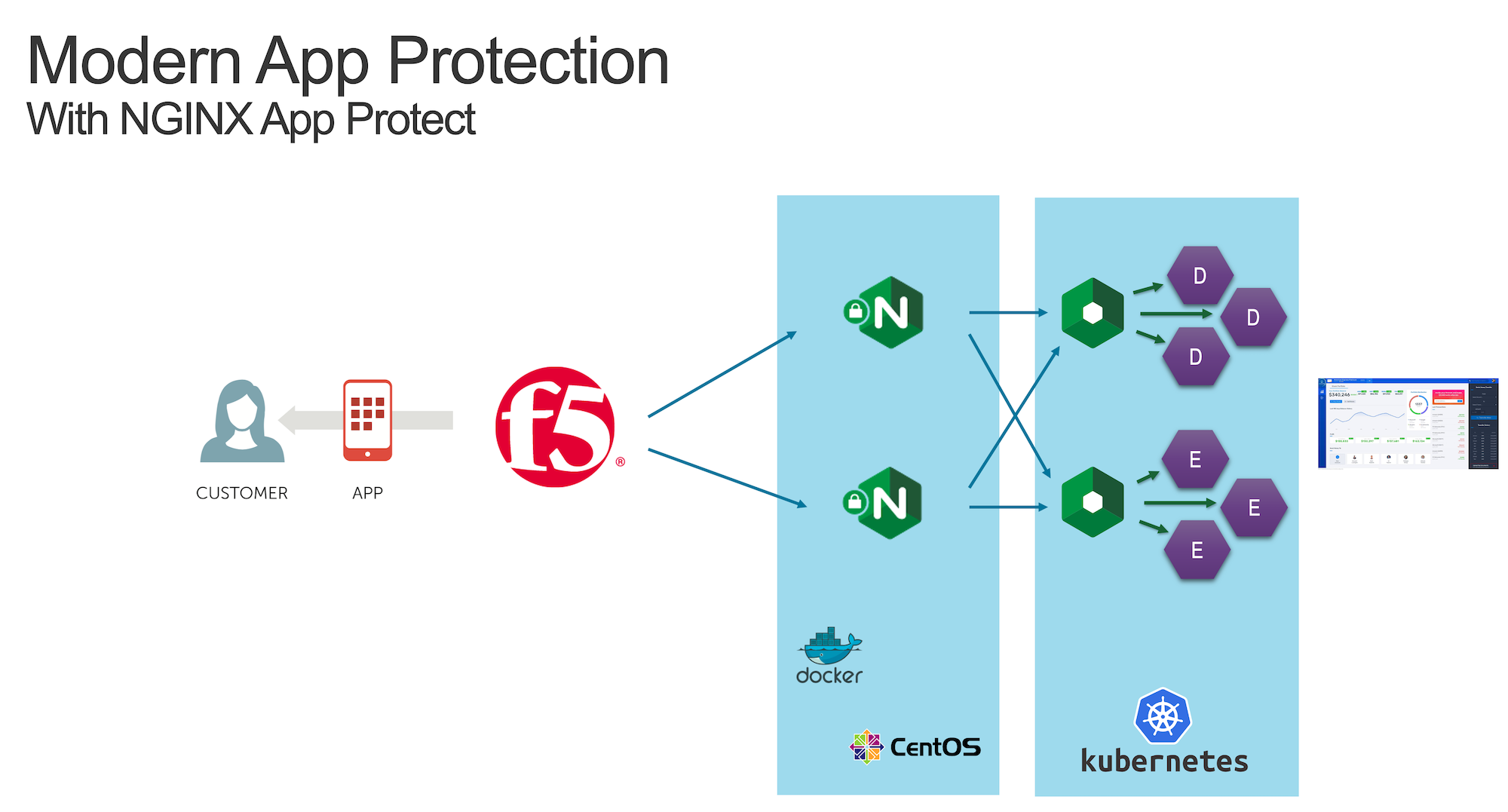
Now, with NAP v1.3, we can deploy this NGINX Plus instance with the NAP module enabled.
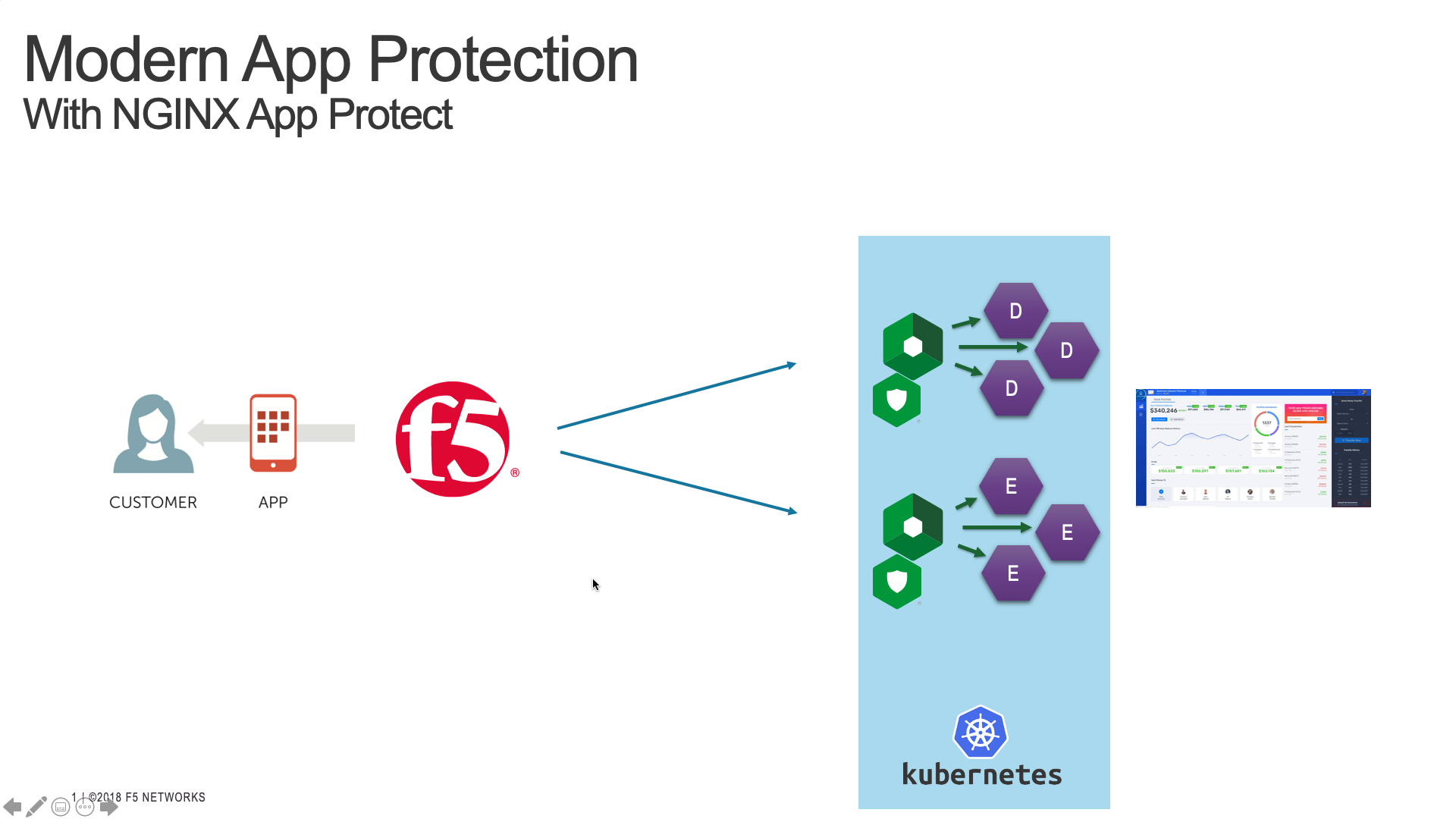
To do so, we will:
Deploy a new version of the Pod (NGINX r22 + NAP v1.3)
Deploy a new Ingress configuration template (with NAP configuration files)
Warning
The NGINX Plus Ingress Controller image is available on my private Gitlab repo. Don’t share the key.
Steps
SSH (or WebSSH and
cd /home/ubuntu/) to CICD ServerRun this command in order to delete the previous KIC
kubectl delete -f /home/ubuntu/k8s_ingress/full_ingress_arcadia.yamlRun this command in order to push the new version of the KIC
kubectl apply -f /home/ubuntu/k8s_ingress/full_ingress_arcadia_nap.yamlCheck the Ingress
arcadia-ingress(in thedefaultnamespace) by clicking on the 3 dots on the right andeditScroll down and check the specs

As you can notice, we added few lines in our Ingress declaration. To do so, I followed the guide (https://docs.nginx.com/nginx-ingress-controller/app-protect/installation/)
I added NAP specifications (from the guide)
I added NAP annotations for Arcadia app (see below)
---
apiVersion: extensions/v1beta1
kind: Ingress
metadata:
name: arcadia-ingress
annotations:
    appprotect.f5.com/app-protect-policy: "default/dataguard-blocking"
    appprotect.f5.com/app-protect-enable: "True"
    appprotect.f5.com/app-protect-security-log-enable: "True"
    appprotect.f5.com/app-protect-security-log: "default/logconf"
    appprotect.f5.com/app-protect-security-log-destination: "syslog:server=10.1.20.6:5144"

spec:
rules:
- host: k8s.arcadia-finance.io
    http:
    paths:
    - path: /
        backend:
        serviceName: main
        servicePort: 80
    - path: /files
        backend:
        serviceName: backend
        servicePort: 80
    - path: /api
        backend:
        serviceName: app2
        servicePort: 80
    - path: /app3
        backend:
        serviceName: app3
        servicePort: 80
Please a make a new test by clicking on Arcadia k8s Chrome bookmark.
Open
ChromeClick on
Arcadia k8sbookmarkNow, you are connecting to Arcadia App from a new KIC with NAP enabled
Send an attack (like a XSS in the address bar) by appending
?a=<script>Attack is blocked
Open ELK and check your logs